Performance
Why is my MacBook overheating? How to cool it down
Updated · 7 min read
A MacBook overheats for one of two reasons: something is making the processor work hard, or the heat it produces has nowhere to go. Usually it’s an app you can find in a minute with Activity Monitor, made worse by a soft surface, a warm room or charging at the same time. Here’s how to tell what’s going on and cool it down.
1. Signs your Mac is overheating
Warm is normal, especially under load. These are the signs that heat is actually affecting your Mac:
- The underside or the area above the keyboard is uncomfortably hot to touch.
- The fans run loudly for a long time, even for light work (on Macs that have fans).
- Apps feel sluggish, video stutters, or exports take much longer than usual.
- kernel_task shows high CPU in Activity Monitor. That’s macOS holding other work back so the chip can cool: a symptom of heat, not the cause.
You don’t need to manage temperatures yourself. macOS watches its own sensors and slows the processor automatically when it needs to, so a hot Mac is protecting itself. The goal is to stop it getting there so often.
2. Does a MacBook Air have a fan?
Not if it has Apple silicon. Every MacBook Air from the M1 onwards is fanless. Instead of spinning up a fan when it gets hot, it quietly lowers its processor speed until it cools down. That’s why an overheating MacBook Air doesn’t get louder; it gets warmer and slower.
Older Intel MacBook Airs did have a fan, so if yours is from 2020 or earlier with an Intel chip, you may hear it. Check Apple menu › About This Mac to see which chip you have.
MacBook Pro models have fans, so on a MacBook Pro overheating usually shows up as fan noise first and slowdown second. See why your Mac’s fans are so loud for more.
3. Find the app working the processor
Open Activity Monitor (Applications › Utilities), choose the CPU tab and click the % CPU column so the busiest process is at the top. An app sitting at high CPU while you aren’t using it is the most likely cause. Quit it, then update it if it keeps happening.
Numbers above 100% are normal for apps using several cores. Our guide to checking CPU usage explains how to read them, and CPU percentage covers what the figure means.
Tip
4. Check where it’s sitting
MacBooks shed heat through the bottom case and, on models with fans, through vents near the hinge and along the sides. Anything that smothers them traps heat.
- Use it on a hard, flat surface. Beds, duvets, sofas and laps block airflow.
- Keep it out of direct sunlight and away from heaters. A hot room means less cooling headroom.
- A laptop stand lifts the case and lets air move underneath it.
- Don’t run it closed in a bag or sleeve while it’s doing heavy work.
5. Charging, heavy work and external displays
Charging produces heat of its own. Combine it with a demanding task, such as exporting video, gaming or compiling code, and a MacBook can get very warm. Driving one or more external displays adds more work for the graphics processor, and WindowServer may climb in Activity Monitor as a result.
None of this is harmful in itself, but if heat is a problem, try unplugging once the battery has enough charge, or saving the heaviest jobs for when the Mac is on a desk with good airflow.
6. Runaway background processes
After a macOS update or migrating to a new Mac, macOS rebuilds its Spotlight index and analyzes your photo library. You’ll see mds_stores, mdworker and photoanalysisd working hard. This is temporary: leave the Mac plugged in on a hard surface for a few hours and it settles down.
If one of these processes stays busy for days, restart the Mac. Sync tools, backup apps, Docker and local development servers can also keep the processor busy in the background, so pause anything you don’t need.
7. Browser tabs and video
A single tab running a heavy web app, ads or a video can keep the processor busy for hours. In Activity Monitor, browser tabs appear as entries like Safari Web Content or Google Chrome Helper (Renderer).
- Close tabs you aren’t using, especially ones playing video or animations.
- Remove extensions you don’t rely on.
- Video calls with effects and screen sharing are demanding; turn off effects you don’t need.
8. Dust in older Intel Macs
Intel MacBooks with fans collect dust over the years, and a clogged fan or heatsink can’t move heat away efficiently. If an older Intel Mac runs hot and loud doing very little, a professional clean can make a real difference. Opening the case yourself can affect your warranty, so an Apple Authorized Service Provider is the safer option.
9. When to get it checked
Contact Apple Support or an authorized service provider if:
- The Mac shuts down on its own because of heat.
- It’s hot while idle, with nothing busy in Activity Monitor.
- The fans stay at full speed after a restart with nothing running.
- The battery looks swollen or the case no longer sits flat.
On Intel Macs, resetting the System Management Controller (SMC) is worth trying first if fans or heat behave strangely. Apple silicon Macs don’t need this; a restart does the equivalent.
Spot the heat before you feel it
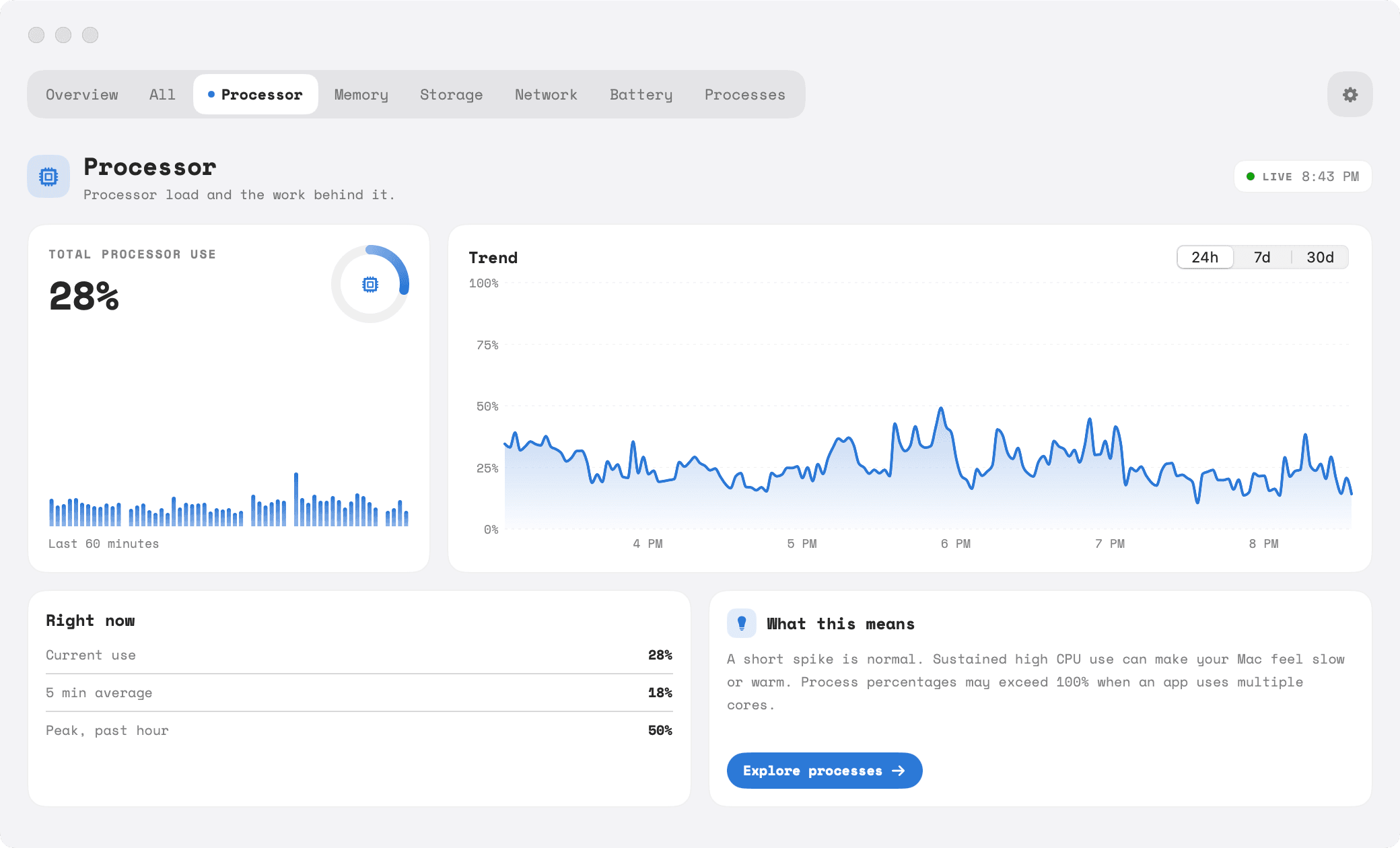
Tempo for Mac can show CPU use and the thermal state macOS reports right in your menu bar, so you notice a busy app before the chassis gets hot. Its process list shows the top apps by CPU or energy with a Quit button, 30 days of history show when the spikes happened, and it can alert you when CPU stays high. Tempo shows the thermal state rather than exact temperatures, and it doesn’t control fans. For more on readings, see how to check your Mac’s temperature.