Performance
Why is my Mac running slow? 9 checks that actually help
Updated · 7 min read
A slow Mac almost always comes down to one of a handful of causes: an app hogging the processor, too little free memory, a nearly full disk, or heat. The good news is that macOS already gives you the tools to find out which one. Work through these checks in order and you’ll usually have your answer in a few minutes.
1. See what’s using the processor
Open Activity Monitor: press ⌘ Space, type “Activity Monitor” and press Return. It also lives in Applications › Utilities.
Choose the CPU tab and click the % CPU column so the busiest process is at the top. One app sitting near or above 100% while you aren’t using it is a strong suspect. Select it and click the ⓧ button in the toolbar to quit it.
Tip
2. Check memory pressure, not memory used
In Activity Monitor’s Memory tab, look at the Memory Pressure graph at the bottom rather than the “Memory Used” number. macOS deliberately fills spare memory with caches, so a high “used” figure is normal.
- Green: memory isn’t your problem.
- Yellow: macOS is compressing memory to keep up. Closing a few apps or browser tabs helps.
- Red: your Mac is swapping to disk and will feel sluggish. Quit apps you aren’t using.
Read What is memory pressure? for the full picture.
3. Free up storage space
macOS needs free disk space for virtual memory, caches and updates. When the startup disk gets close to full, everything slows down. Open Apple menu › System Settings › General › Storage to see what’s using space and act on the recommendations.
A good rule of thumb is to keep at least 10–15% of the disk free. Emptying the Trash, removing old downloads and offloading large video or photo libraries make the biggest difference.
4. Trim apps that open at login
Every app that launches at login competes for processor time and memory. Go to System Settings › General › Login Items (called Login Items & Extensions on newer versions of macOS) and remove anything you don’t need running all day.
The “Allow in the Background” list on the same screen shows helper tools that run quietly. Switch off any belonging to apps you no longer use.
5. Tame your browser
Browsers are often the single biggest user of memory on a Mac, because each tab runs in its own process. In Activity Monitor these show up as entries like Google Chrome Helper (Renderer) or Safari Web Content.
- Close tabs you aren’t using, especially ones playing video or running web apps.
- Remove browser extensions you don’t rely on; each one adds work to every page.
- Restart the browser every few days if you keep many tabs open.
6. Give it time after a macOS update
After a major update or migrating to a new Mac, macOS re-indexes your files for Spotlight and analyzes your photo library. You’ll see processes such as mds_stores, mdworker and photoanalysisd working hard. This is temporary. Leave the Mac on and plugged in for a few hours and it settles down on its own.
7. Check for heat
When a Mac gets hot, macOS slows the processor to protect it. In Activity Monitor this often appears as kernel_task using a lot of CPU: it’s keeping other work off the processor so it can cool down.
Keep the vents clear, avoid using a laptop on a bed or sofa, and find the app that’s working the processor hard in the first place.
8. Update macOS and your apps
Performance fixes ship in updates all the time. Check System Settings › General › Software Update, then update your apps from the App Store or from within each app. An old version of a busy app is a common cause of high CPU use.
9. Restart once in a while
Many Macs go weeks without a restart. Over time, stuck processes and growing swap files add up. A restart clears all of it in a minute, and it’s often the quickest fix of all.
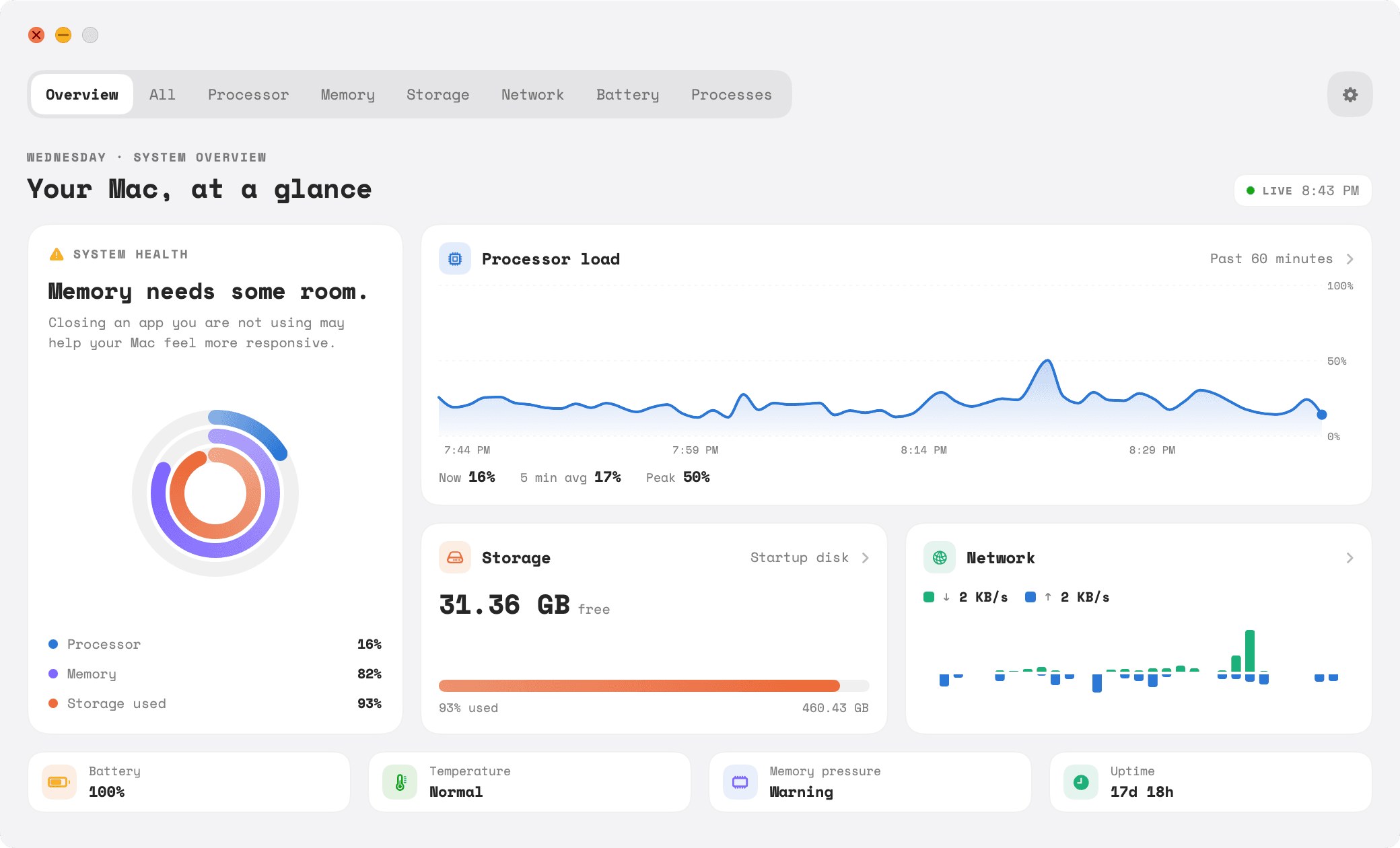
Catch slowdowns before you feel them
Activity Monitor tells you what’s happening right now, but slowdowns are easier to understand with history. Tempo for Mac keeps processor, memory and storage in your menu bar, keeps 30 days of history on your Mac and can alert you when CPU stays high or memory pressure turns yellow.