Memory
What is memory pressure on a Mac? Green, yellow and red explained
Updated · 6 min read
If you’ve opened Activity Monitor and seen that almost all your memory is “used”, don’t panic. On a Mac that number tells you very little. The figure that matters is memory pressure: a measure of how hard macOS is working to give your apps the memory they ask for.
Where to find memory pressure
Open Activity Monitor (it’s in Applications › Utilities) and choose the Memory tab. The Memory Pressure graph sits at the bottom of the window, next to a summary of physical memory, memory used, cached files and swap used.
What the colors mean
| Color | What’s happening | What to do |
|---|---|---|
| Green | macOS has all the memory it needs. | Nothing. Your Mac is fine. |
| Yellow | macOS is compressing memory to fit everything in. | Usually fine for a while. If it stays yellow, close apps or tabs you aren’t using. |
| Red | Memory is full and macOS is swapping to disk. | Expect slowdowns. Quit apps; if it happens often, consider more memory. |
Why “Memory Used” is misleading
Unused memory is wasted memory, so macOS fills it with cached files: recently used data it can hand back instantly if an app needs the space. That’s why “Memory Used” often looks close to your total even when nothing is wrong.
Memory Used is split into three parts:
- App Memory: what your apps are actively using.
- Wired Memory: memory the system needs and can’t compress or swap out.
- Compressed: memory macOS has squeezed to make room, a sign pressure is building.
Compression and swap, briefly
When memory gets tight, macOS first compresses memory that apps aren’t touching right now. That’s fast and mostly invisible. If that’s not enough, it moves some data to the disk, called swap. Reading it back from disk is far slower than from memory, which is when your Mac starts to feel sluggish.
Tip
How to bring memory pressure down
- Sort the Memory tab by the Memory column to see which apps are using the most.
- Close browser tabs you don’t need; each one can use hundreds of megabytes.
- Quit apps you’ve left open in the background, especially editors, design tools and virtual machines.
- Restart your Mac to clear accumulated swap.
Do you need more memory?
If memory pressure regularly turns red during your normal work, not just when you have an unusual number of apps open, your Mac would benefit from more memory. On most current Macs memory can’t be upgraded later, so it’s worth choosing more when you buy your next one. If pressure is mostly green or briefly yellow, more memory won’t make a noticeable difference.
Keep an eye on it without opening Activity Monitor
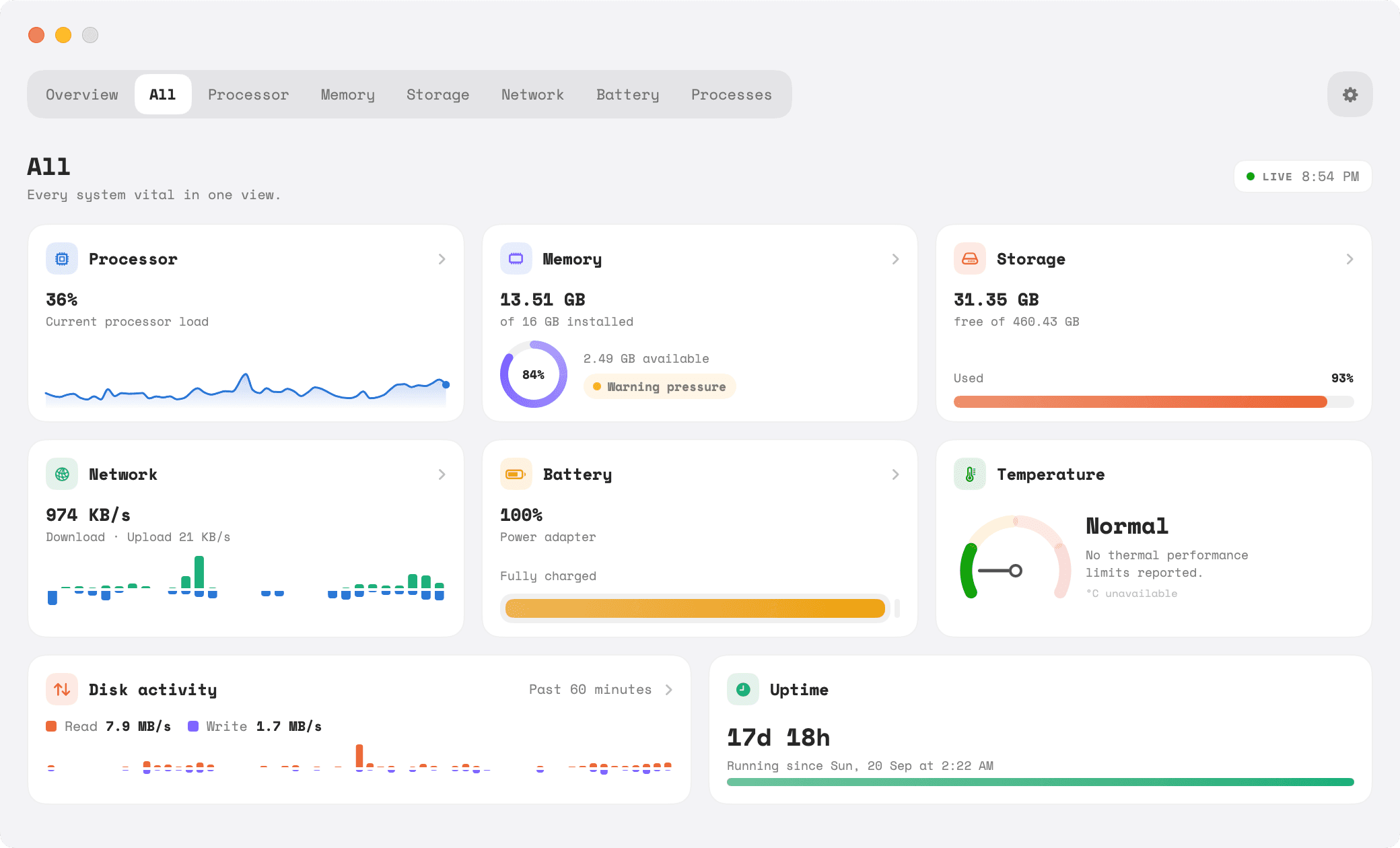
Tempo for Mac shows memory use and pressure in its menu bar panel and on its Memory page, with 30 days of history so you can see whether red pressure is a one-off or a pattern. You can also ask it to notify you when pressure stays at warning or critical for a few minutes. See also why your Mac might be running slow.