Network
How to find your IP address on a Mac (private and public)
Updated · 6 min read
The quickest way to find your IP address on a Mac is to open System Settings › Network, choose Wi-Fi or Ethernet, click Details… and look on the TCP/IP tab. That’s your private address on the local network. The public address websites see is different, and you find it by asking a website or running one Terminal command. Both are covered below.
Private vs public IP address
Your Mac effectively has two IP addresses, and which one you need depends on what you’re doing.
| Private (local) IP | Public IP | |
|---|---|---|
| Looks like | 192.168.1.23, 10.0.0.5 or 172.16.x.x | Any other address, e.g. 203.0.113.42 |
| Assigned by | Your router | Your internet provider |
| Who sees it | Devices on your own network | Every website and service you connect to |
| Unique to | Your Mac, on this network | Your whole network: every device behind the router shares it |
| Use it for | Printer setup, file sharing, router settings, local servers | Allow-lists, remote access, troubleshooting with support |
You’ll also see two formats. IPv4 addresses are four numbers separated by dots, like 192.168.1.23. IPv6 addresses are longer, written in groups of letters and numbers separated by colons, like 2001:db8::1a2b. Many networks give your Mac both, and either can be correct.
1. Find your private IP in System Settings
- Open Apple menu › System Settings › Network.
- Click Wi-Fi (or Ethernet if you’re plugged in).
- Click Details… next to the network you’re connected to.
- Choose TCP/IP in the sidebar. Your address is listed as IP address.
The same tab shows the Router address, usually something like 192.168.1.1. Type that into a browser to reach your router’s settings page. If your network uses IPv6, its addresses appear further down the same tab.
3. Use Terminal
Open Terminal (it’s in Applications › Utilities) and run:
ipconfig getifaddr en0
It prints your private IPv4 address and nothing else, which is handy for scripts. On most MacBooks en0 is Wi-Fi, but interface names vary between models and when docks or adapters are attached. If you get no output, list your interfaces with:
networksetup -listallhardwareports
Find the “Device” name next to Wi-Fi or Ethernet (for example en1) and use that instead. For IPv6, run ifconfig en0 | grep inet6.
4. Find your public IP address
Your Mac can’t see its public address directly, because it belongs to your router’s connection to the internet. The easy way is to ask something outside your network:
- Search “what is my IP” in your browser, or visit any IP-checking website.
- In Terminal, run
curl https://api.ipify.org. It prints your public IPv4 address.
Every device on the same network (your phone, TV, another Mac) shows the same public address. It can also change over time, since most home internet providers don’t guarantee a fixed one.
VPNs and Private Relay
IP address vs MAC address
“Mac IP address” searches are sometimes really about the MAC address (Media Access Control), the hardware address of a network adapter. It looks like a4:83:e7:12:34:56 and has nothing to do with Apple’s Mac name.
- Wi-Fi Details screen: in System Settings › Wi-Fi, click Details… next to your network. The Wi-Fi address shown there is the one this network sees.
- Option-click the Wi-Fi icon: the hardware address appears near the top of the menu.
If Private Wi-Fi address is turned on for a network, your Mac shows that network a different, private address instead of the real hardware one. Keep that in mind when adding your Mac to a router’s allow-list.
If the address looks wrong
- It starts with 169.254: your Mac didn’t get an address from the router. Click Renew DHCP Lease on the TCP/IP tab, or restart the router. Our guide to Wi-Fi that keeps disconnecting has more fixes.
- It changed since yesterday: normal. Routers hand out addresses for a limited time. If a printer or server needs a stable address, reserve one for your Mac in the router’s settings.
- Private and public look the same: uncommon at home, but possible when your Mac connects without a router in between.
Keep your IP address one click away
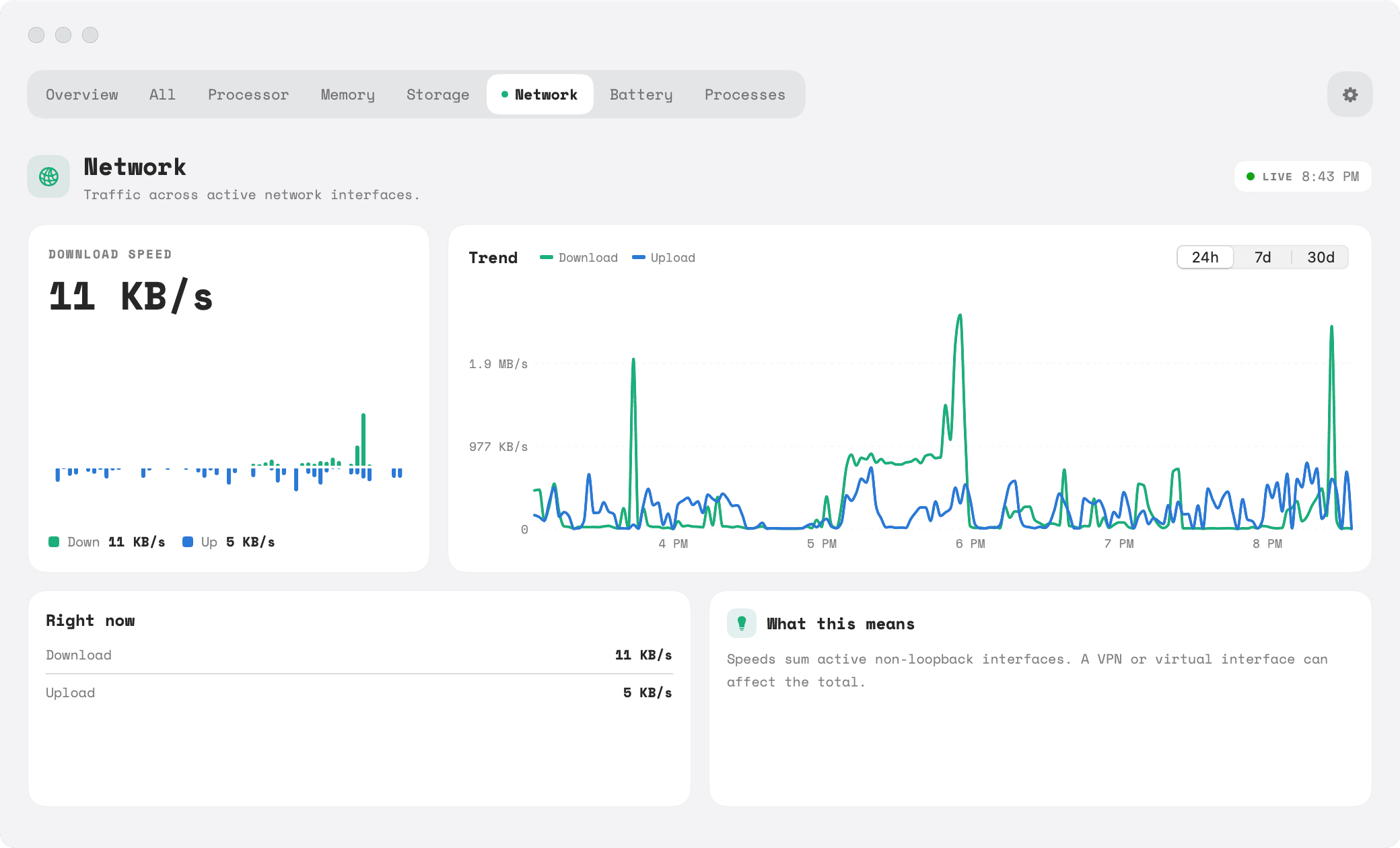
If you look up your IP address often, Tempo for Mac’s Network page shows your private IP with a copy button, alongside whether you’re online, your connection type (Wi-Fi, Ethernet or VPN) and your Wi-Fi network. Your public IP is only looked up when you click Look up, so nothing is sent anywhere until you ask; it shows IPv4 with IPv6 alongside when your network has it.