Alternatives
The best menu bar apps for Mac in 2026
Updated · 7 min read
The best menu bar apps for Mac each do one job well and stay out of the way: a system monitor, an organizer to hide icons you rarely use, a clipboard manager, a keep-awake toggle, a window manager and a calendar. Below is an honest pick for each job, plus the built-in macOS options you might not need to replace at all.
At a glance
| Job | Our pick | Also good |
|---|---|---|
| System monitoring | Tempo for Mac | iStat Menus, Stats |
| Hide and reorder icons | Bartender | Ice |
| Clipboard history | Maccy | Built-in: none |
| Keep the Mac awake | Amphetamine | Terminal: caffeinate |
| Window management | Rectangle | Built-in tiling on newer macOS |
| Calendar | Itsycal | Built-in: Notification Center widgets |
1. System monitoring: Tempo for Mac
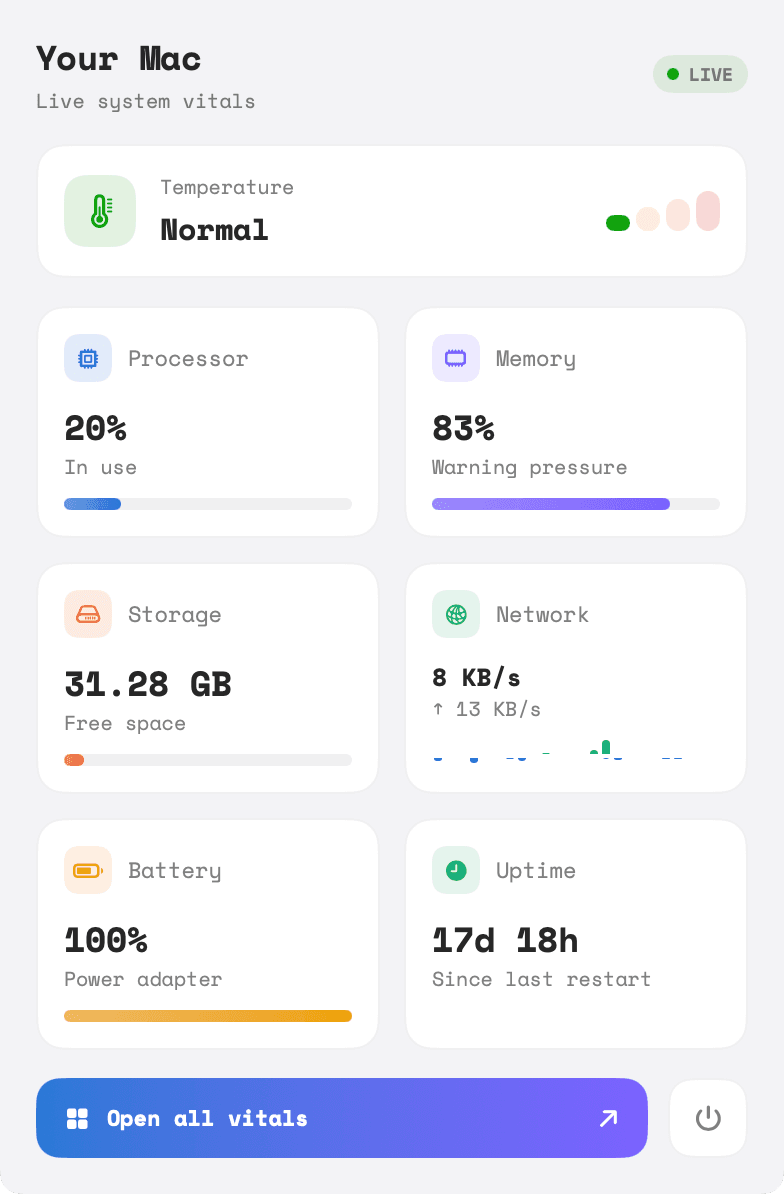
Tempo is a native menu bar app (macOS 14 or later) that keeps up to four vitals in the menu bar: CPU, memory, storage, network, battery or thermal state, in one item or separate items, as an icon, a live value or both. On MacBooks with a notch it can show live CPU and download speed beside the notch, and hovering opens rings for all six vitals. Click through and you get live charts updated every 2 seconds, 30 days of history kept on your Mac, the ten busiest processes by CPU, memory or energy with Quit and Force Quit, and alerts for sustained high CPU, memory pressure, low storage and low battery.
- Good: clear design, history and alerts, flexible menu bar layout, one-time purchase.
- Not for you if: you need GPU load, fan speeds or exact temperatures, which Tempo doesn’t show.
Alternatives: iStat Menus is the long-standing power-user choice, with deep sensor, fan and GPU data and lots of customization. Stats is a free, open-source monitor with many modules. Our Activity Monitor alternatives guide compares them in more detail.
Tip
2. Hide and reorder icons: Bartender or Ice
Once you have more than a handful of menu bar apps, an organizer earns its place. These let you tuck rarely used icons into a hidden section, reveal them with a click or shortcut, and keep the important ones visible.
- Bartender is the best-known option, paid, with a long history and plenty of rules for when icons appear.
- Ice is a free, open-source alternative that covers the core job of hiding and showing icons well.
3. Clipboard history: Maccy
macOS only remembers the last thing you copied. Maccy is a free, open-source clipboard manager that keeps a searchable history of what you’ve copied, opened from the menu bar or a keyboard shortcut. It’s lightweight and keyboard-friendly. If you handle passwords, check its settings for ignoring sensitive apps or clearing history.
4. Keep your Mac awake: Amphetamine
Amphetamine is a free app from the Mac App Store that stops your Mac sleeping for as long as you choose: a set time, while a file downloads, while an app is running and so on. It’s ideal for long downloads, presentations or renders.
Prefer no extra app? Running caffeinate in Terminal keeps the Mac awake until you press Control C. And if your Mac stays awake when you don’t want it to, see why won’t my Mac sleep.
5. Window management: Rectangle
Rectangle is a free, open-source window manager that snaps windows to halves, thirds and corners with keyboard shortcuts, with a menu bar icon for the same actions. Recent macOS versions have added basic window tiling of their own, so try that first; Rectangle is worth it if you want more layouts and shortcuts.
6. Calendar: Itsycal
Itsycal is a small, free menu bar calendar. Click it and you get a month view with your upcoming events from the calendars already set up on your Mac, without opening the Calendar app. You can also have it show the date in the menu bar in your own format.
7. What macOS already gives you
Before installing anything, check what’s built in:
- Control Center modules: in System Settings › Control Center you can choose to show items such as Wi-Fi, Bluetooth, Sound, Battery, Focus and Now Playing directly in the menu bar, or keep them tucked inside Control Center. Newer macOS versions may organize these settings slightly differently.
- Rearrange icons: hold ⌘ Command and drag menu bar icons to reorder them.
- Remove icons: hold ⌘ Command and drag a system icon out of the menu bar to remove it. Third-party icons are usually removed from the app’s own settings or by quitting the app.
- Auto-hide: System Settings also lets you hide the whole menu bar until you move the pointer to the top of the screen.
Keep your menu bar lean
On MacBooks with a notch, the menu bar has less room than it seems. When there are too many icons, macOS simply hides the ones that don’t fit behind the notch, with no warning, and an app’s menus can push icons out of view too. Some tips:
- Keep only the icons you look at every day; open the rest from Spotlight or Launchpad when needed.
- Use an organizer like Bartender or Ice if you need many icons but rarely look at most of them.
- Combine where you can: one system monitor instead of separate CPU, network and battery apps.
- Turn off icons apps add by default but you never use; most apps have a setting for it.
Read more about the MacBook notch and the menu bar.
How to choose
- Want to see CPU, memory, network and battery at a glance, with history and alerts: Tempo.
- Too many icons, or icons lost behind the notch: Bartender or Ice.
- Copy and paste a lot: Maccy.
- Need the Mac to stay awake on demand: Amphetamine.
- Juggle lots of windows: Rectangle.
- Want a quick calendar glance: Itsycal.