Network
Mac keeps disconnecting from Wi-Fi? 10 fixes that work
Updated · 8 min read
When a Mac keeps disconnecting from Wi-Fi or won’t connect at all, the cause is usually one of four things: a weak or crowded signal, a stale network setting on the Mac, the router itself, or software such as a VPN getting in the way. Start with the quick fixes at the top and work down; most people are back online within the first five.
1. Turn Wi-Fi off and on
Click the Wi-Fi icon in the menu bar (or open System Settings › Wi-Fi), switch Wi-Fi off, wait ten seconds and switch it back on. It sounds too simple, but it resets the connection and clears a surprising number of one-off drops.
2. Restart your Mac and your router
Restart the Mac from Apple menu › Restart. Then unplug the router (and modem, if it’s a separate box) for about 30 seconds and plug it back in. Give it a couple of minutes to come back fully.
A quick test: if your phone and other devices are also dropping, the problem is the router or your internet connection, not the Mac.
3. Forget the network and rejoin
A saved network can hold on to old settings, especially after a router change or a new password. Go to System Settings › Wi-Fi, click Details… next to the network and choose Forget This Network. Then pick it from the list again and enter the password.
Tip
4. Check your signal strength
Hold ⌥ Option and click the Wi-Fi icon in the menu bar. Under your network, macOS shows details including RSSI (signal strength), Noise, Channel, the band and Tx Rate (the current link speed).
| RSSI | What it means |
|---|---|
| −30 to −55 dBm | Excellent. You’re close to the router. |
| −55 to −67 dBm | Good. Fine for video calls and streaming. |
| −67 to −75 dBm | Weak. Expect slowdowns and occasional drops. |
| −75 dBm or lower | Poor. Disconnections are likely. |
The numbers are negative, so closer to 0 is better. If you’re around −70 dBm or worse, move closer to the router, put the router somewhere higher and more central, or consider a mesh system or extender for large homes. Walls, floors, mirrors and fish tanks all weaken Wi-Fi.
5. Prefer 5 GHz or 6 GHz, and watch for interference
The 2.4 GHz band reaches further but is crowded: neighbors’ networks, Bluetooth, baby monitors and microwaves all share it. 5 GHz (and 6 GHz on newer Macs and routers) is faster and much less congested at short to medium range. If your router offers separate network names for each band, try joining the 5 GHz one.
One Mac-specific culprit: USB 3 devices, hubs and docks can give off interference in the 2.4 GHz range. If Wi-Fi drops when a drive or hub is plugged in, move it away from the Mac with a short cable, or use 5 GHz.
6. Change the Private Wi-Fi address setting
To protect your privacy, macOS can show each network a private hardware address instead of your Mac’s real one. Some routers don’t handle this well, particularly ones that use MAC address filtering, parental controls or device limits, and they may refuse or keep dropping your Mac.
Open System Settings › Wi-Fi, click Details… next to the network and find Private Wi-Fi address. On recent macOS versions you can choose Fixed, Rotating or Off; on older ones it’s a simple switch. If it’s set to rotate, try Fixed; if that doesn’t help on a trusted home network, try Off.
7. Renew your DHCP lease
If Wi-Fi shows as connected but nothing loads, your Mac may not have a valid address from the router. In System Settings › Wi-Fi, click Details…, choose TCP/IP and click Renew DHCP Lease.
An IP address starting with 169.254 on that tab is the giveaway: it means the Mac couldn’t get an address. See how to find your IP address on a Mac for more on what those numbers mean.
8. Check VPNs, firewalls and content filters
VPN apps, security software, ad blockers that work system-wide and parental-control tools often install network extensions that sit between your Mac and the internet. When one of them misbehaves, it can look exactly like a Wi-Fi problem.
- Disconnect any VPN and see if the drops stop.
- Look in System Settings › Network for the VPN and filter sections, and temporarily disable any filters you don’t recognize or no longer need.
- Update or uninstall security and VPN apps you don’t use; old versions are a common cause after a macOS update.
9. Update macOS and your router’s firmware
Wi-Fi fixes ship in macOS updates regularly. Check System Settings › General › Software Update. Your router needs updates too: most have an update option in their app or settings page, and older routers that no longer get updates are a frequent cause of drops with newer devices.
10. Run Wireless Diagnostics
macOS includes a built-in tool for this. Hold ⌥ Option, click the Wi-Fi icon and choose Open Wireless Diagnostics. Follow the prompts and it checks your connection, can monitor it over time to catch intermittent drops, and offers recommendations at the end.
It’s worth running before you call your internet provider or Apple: the report gives them something concrete to work with.
Wi-Fi drops after sleep
If the connection only fails when the Mac wakes up, try these:
- Make sure macOS and any VPN or security apps are up to date; wake issues are often fixed in updates.
- Forget and rejoin the network (fix 3), and try a Fixed private address (fix 6).
- If you rely on your Mac staying reachable while asleep, look at the battery and energy options in System Settings, such as waking for network access.
If your Mac has the opposite problem and won’t go to sleep at all, see why won’t my Mac sleep.
See when the connection drops
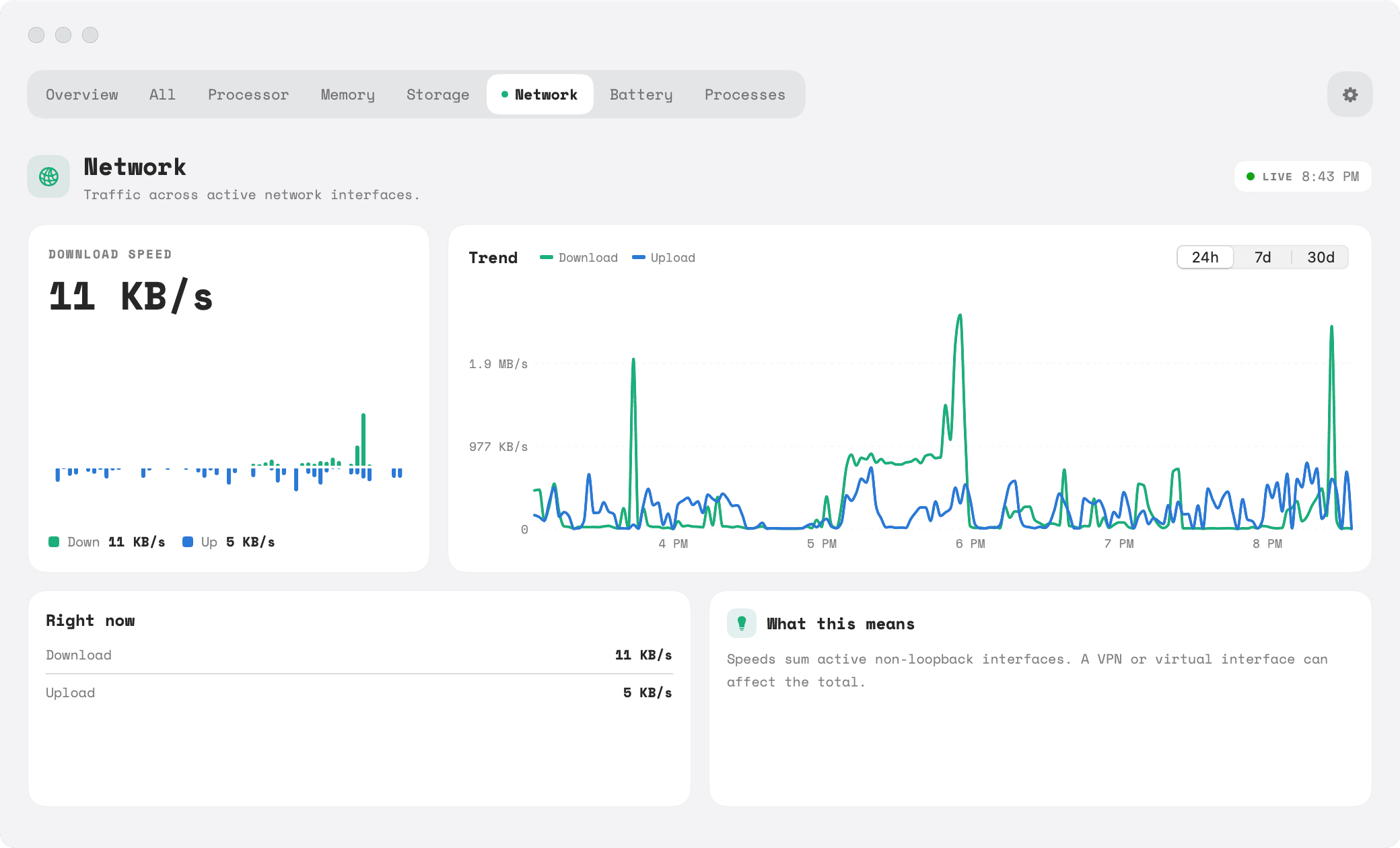
Intermittent drops are hard to fix when you only notice them after a page fails to load. Tempo for Mac’s menu bar panel shows when you’re offline at a glance, and its Network page shows whether you’re online, your connection type (Wi-Fi, Ethernet or VPN), the Wi-Fi network name, signal strength, band and link speed, plus live download and upload rates. That makes it easy to spot whether a slowdown is a weak signal or something further down the line.