Basics
The MacBook notch: what it is, how to hide it, and how to put it to work
Updated · 6 min read
The notch is the cutout at the top of the screen on newer MacBooks that holds the camera. It sits in extra screen space above the normal display area, so the menu bar wraps around it. It can hide menu bar icons when you have a lot of them, but there are simple fixes, ways to hide it, and apps that put the space beside it to work.
1. What the notch is
The notch arrived with the 14- and 16-inch MacBook Pro in 2021 and came to the MacBook Air with the M2 model in 2022. Later MacBook Pro and MacBook Air models have it too. It houses the FaceTime camera and the sensors around it, which let Apple shrink the bezels around the screen.
Rather than cutting into the regular picture, Apple made these displays taller. The usual 16:10 area sits below the notch, and the strip on either side of it is extra space that macOS uses for the menu bar. That’s why the menu bar on a notched MacBook is a little taller than on older models.
2. What happens in full screen
When you put an app or a video in full screen, macOS uses the 16:10 area below the notch and turns the strip around it black. The notch effectively disappears into a black border. Move the pointer to the top of the screen and the menu bar slides back into that strip.
4. How to hide the notch
macOS has no setting to hide the notch, but there are two common approaches:
- Use a wallpaper with a black top strip. With a black band where the menu bar sits, the notch blends into it and the menu bar looks like a solid black bar. Many wallpapers are made for this, or you can add a black strip to your own picture.
- Use a dedicated app. Some small utilities draw a black band across the top of the screen for you, so it works with any wallpaper.
The camera’s green indicator light still shows next to it when the camera is in use, whichever approach you choose.
5. Putting the notch to work
A growing number of notch apps turn the space around the camera into something useful: media controls, file shelves, timers and system stats that expand when you hover over the notch. Since the area on either side of the notch is otherwise empty, it’s a natural place for glanceable information.
Before installing one, check that it lets clicks through to the menu bar and gets out of the way in full screen, so it doesn’t fight with the icons you already have.
6. Macs without a notch and external displays
Older MacBooks, iMacs and external displays don’t have a notch, and the menu bar runs straight across. Some notch apps still work on these screens by drawing a notch-shaped island at the top of the screen, so you get the same features on every display.
Tempo’s notch island
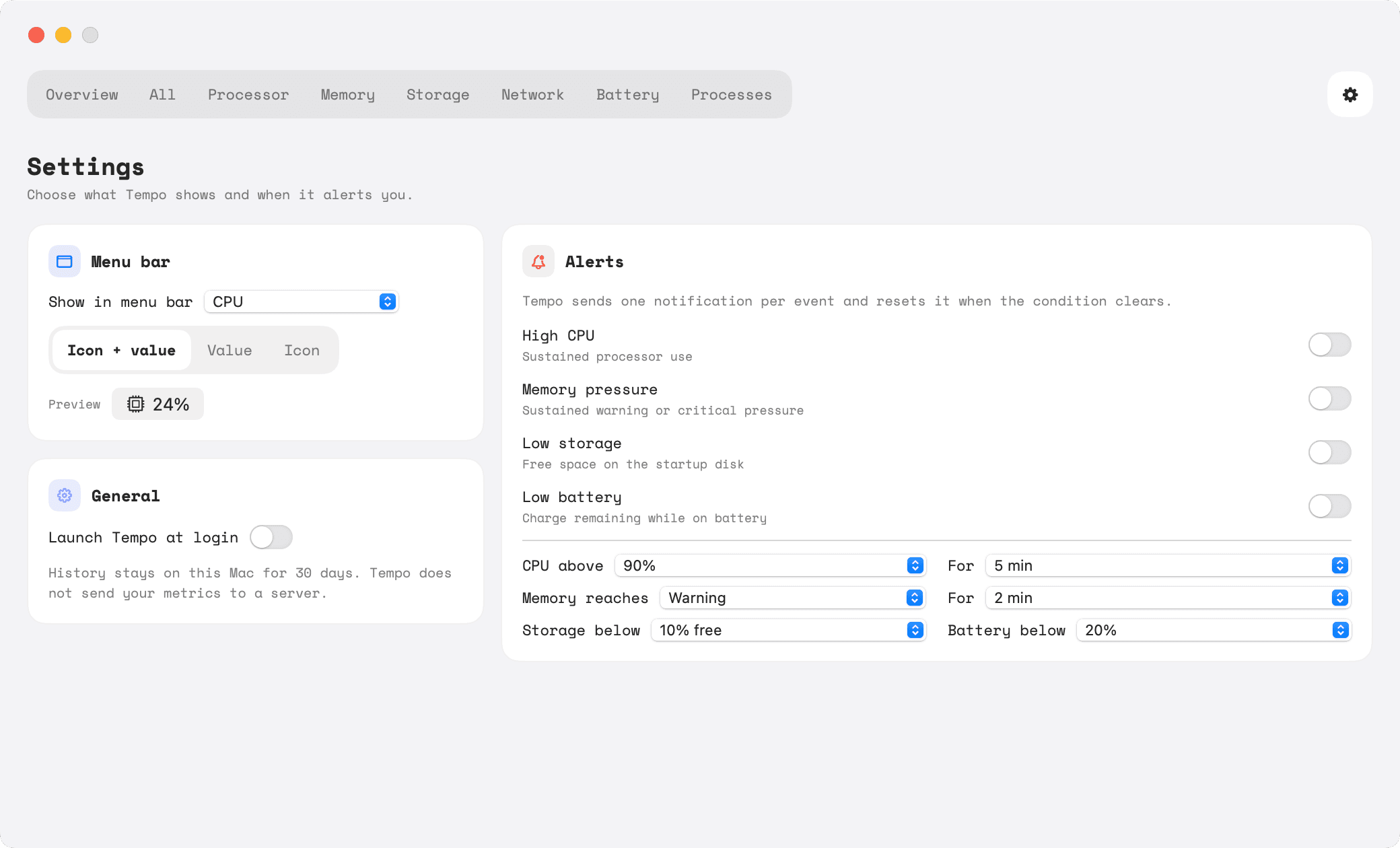
Tempo for Mac 1.3 added a notch island. It shows live CPU percentage and download speed on either side of the notch, and when you hover over it, it opens into rings for CPU, memory, storage, network, battery and the macOS thermal state. Clicks pass through to the menu bar, it hides when you’re in a full-screen app, and Macs without a notch or external displays get a drawn island instead. Turn it on in Settings › Menu bar inside Tempo.
If you’d rather keep the menu bar itself, Tempo can also show up to four vitals there. See our roundup of the best menu bar apps for Mac for more ways to use that space.