Memory
Mac memory cleaners: do you need one? (Usually not)
Updated · 6 min read
Most Macs don’t need a memory cleaner. macOS manages memory itself, and it deliberately keeps RAM full of useful data. Clearing it makes a number look better for a moment, but usually makes your Mac a little slower, not faster. Here’s why, and how to tell when memory really is the problem.
Free memory is wasted memory
RAM is the fastest storage your Mac has. Leaving it empty gains nothing, so macOS fills spare memory with things it might need again: files you recently opened, parts of apps you recently quit, and data from the disk. When an app needs that memory, macOS hands it over almost instantly.
That’s why Activity Monitor can show “Memory Used” close to your total RAM on a Mac that feels perfectly fast. A nearly full memory bar is the system working as designed, not a sign that something needs cleaning.
How macOS manages memory
Activity Monitor’s Memory tab breaks memory into a few parts. These are the ones that matter for the cleaner question:
| Term | What it means |
|---|---|
| Cached Files | Recently used file data kept in memory so it opens quickly next time. macOS frees it automatically when apps need room. |
| Compressed | Memory macOS has squeezed to fit more in RAM. Faster than writing to disk, and done automatically. |
| Swap Used | Memory moved out to the disk when RAM runs short. Some swap is normal; lots of it, growing, is a warning sign. |
| Memory Pressure | How hard macOS is working to supply memory. Green, yellow or red. This is the real signal. |
macOS moves through these steps on its own: it uses spare memory for cache, compresses when space gets tight, and swaps only as a last resort. For more detail, see what memory pressure means on a Mac.
What memory cleaner apps actually do
Most memory cleaners, whatever they call the feature, work by pushing macOS to throw away cached data. macOS includes a command that does exactly this, purge, which you can run in Terminal with sudo purge. Afterwards the “free memory” figure jumps up, which looks like a win.
But that cached data was there for a reason. Once it’s gone:
- Apps and files you were using have to be read back from the disk, so the next few things you do can feel slightly slower.
- macOS refills memory with cache again over the next few minutes, so the “freed” memory doesn’t stay free.
- Cleaners that run constantly in the background, “optimizing” on a timer, use processor time and memory themselves.
Tip
sudo purge once is harmless, and it’s a quick way to see the effect for yourself: watch memory pressure, not the free memory number. It rarely changes.So do Mac memory cleaners work?
They do what they say, in the narrow sense that the free memory number goes up. They don’t fix the cause of a memory problem. If memory pressure is green, there was nothing to fix. If it’s yellow or red, the cause is an app or set of apps that needs more memory than your Mac has, and clearing caches doesn’t change that: the same apps still need the same memory a minute later.
The one thing a cleaner can genuinely do is quit or flag heavy apps for you. That’s useful, but it’s also something you can do yourself in Activity Monitor in a few seconds.
When memory really is the problem
Memory is worth acting on when you see these signs together:
- Memory pressure is yellow or red in Activity Monitor, and stays there rather than spiking briefly.
- Swap Used is large, several gigabytes, and keeps growing.
- The Mac feels sluggish: switching apps is slow and you see the spinning beachball often.
If memory pressure is green but the Mac is still slow, look elsewhere: processor, storage or heat. Our slow Mac checklist covers those.
What actually helps instead
- Quit the heaviest app. Sort Activity Monitor’s Memory tab by the Memory column. Quitting one large app frees far more than any cleaner.
- Close browser tabs you aren’t using; each one is its own process.
- Restart after days or weeks of uptime to clear swap and any memory an app has leaked.
- Trim login items in System Settings › General › Login Items & Extensions.
- Update the app whose memory keeps growing the longer it runs. That’s usually a leak, and fixes often arrive in updates.
- Buy more memory next time if pressure is red during your normal work. Memory on current Macs can’t be upgraded later.
For the step-by-step version, see how to free up RAM on a Mac.
Watch memory instead of cleaning it
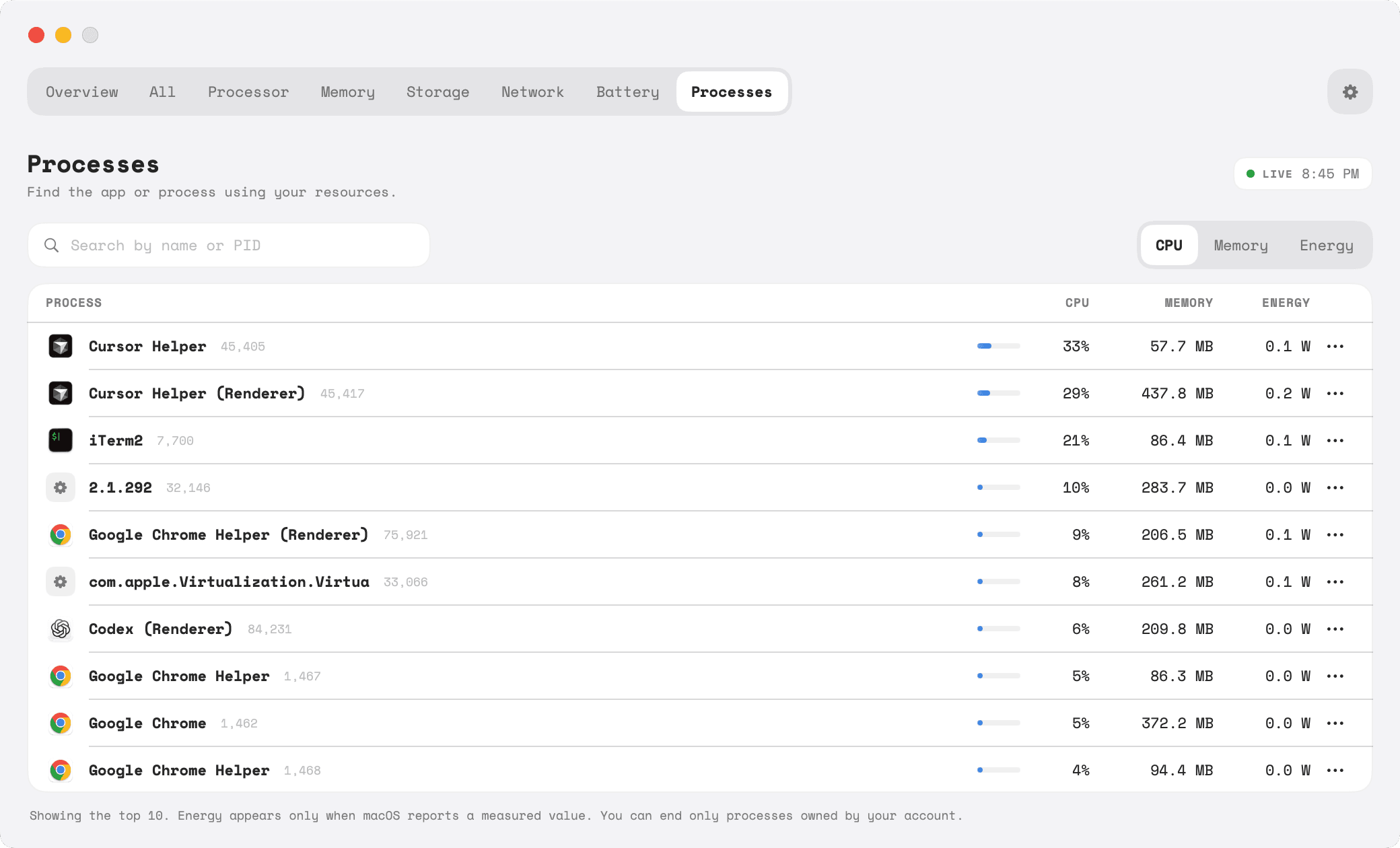
Tempo for Mac doesn’t “clean” memory, and that’s deliberate: macOS does a better job of managing it than any app can. What Tempo does is show memory use and pressure live in the menu bar and its dashboard, keep 30 days of history on your Mac so you can see whether high pressure is a pattern or a one-off, and alert you when memory pressure stays high. Its process list shows the top apps by memory, with Quit and Force Quit one click away.