Battery
How to check your MacBook’s battery health and cycle count
Updated · 6 min read
To check your MacBook’s battery health, open System Settings › Battery and click the ⓘ button next to Battery Health. You’ll see the battery’s condition and, on recent versions of macOS, its maximum capacity as a percentage. The cycle count lives in System Information. Here’s how to find both and what the numbers mean.
1. Check battery health in System Settings
Open Apple menu › System Settings › Battery. Next to Battery Health, click the ⓘ button (on some versions of macOS it’s a button labelled Battery Health…).
- Battery Condition reads Normal when the battery is working as expected, or Service Recommended when it holds noticeably less charge than when it was new, or isn’t working properly.
- Maximum Capacity, shown on recent macOS versions, is how much charge the battery can hold compared with when it was new. 100% is a new battery; the number drifts down slowly with age and use.
Tip
2. Find your battery cycle count
macOS doesn’t show the cycle count in System Settings. It’s in System Information:
- Choose Apple menu › About This Mac, click More Info…, then scroll down and click System Report…. Shortcut: hold ⌥ Option, open the Apple menu and choose System Information.
- In the sidebar, under Hardware, select Power.
- Look under Health Information for Cycle Count. The same section also shows the battery’s condition.
If you prefer Terminal, this prints the number in one line:
system_profiler SPPowerDataType | grep -i "cycle count"
What is a battery cycle?
One charge cycle means using 100% of the battery’s capacity in total, not necessarily all at once. Using 60% one day, recharging, then using 40% the next day adds up to one cycle. Topping up from 90% to 100% counts as only a tenth of one.
So the cycle count is a measure of how much work the battery has done over its life, not how many times you’ve plugged the Mac in.
How many cycles is normal?
Apple says a MacBook battery is designed to retain up to 80% of its original capacity at its maximum cycle count, which is 1000 for recent MacBook models. Very old MacBooks, from before roughly 2010, are rated for fewer cycles.
- Under a few hundred cycles: a young battery. Health should be Normal.
- Around 1000 cycles: the battery has reached its rated life. Expect noticeably shorter runtime, though many keep working well beyond this.
Cycle count and maximum capacity together tell the story. A battery with few cycles but low capacity has usually been aged by heat or time rather than use.
Optimized Battery Charging
Batteries age faster when they sit at 100% for long periods. Optimized Battery Charging learns your daily routine and, when it expects you to stay plugged in, waits to charge past 80% until shortly before you usually unplug. On many versions of macOS you’ll find the switch in the same ⓘ panel next to Battery Health in System Settings › Battery. It’s on by default; leave it on unless you need a full charge at an unpredictable time.
What actually helps a battery last
- Avoid heat. High temperatures do the most lasting damage. Don’t leave a MacBook in a hot car or charge it under a pillow or duvet, and keep the vents clear when it’s working hard.
- Keep macOS up to date. Updates often include improvements to battery management.
- Don’t stress about full charges. Charging to 100% before a long day is fine. There’s no need to drain the battery completely or to unplug the moment it’s full.
- Reduce what drains it. Fewer charge cycles means a longer life. Our guide on what’s draining your Mac’s battery shows how to find the culprits.
When to replace the battery
It’s time to think about a replacement when you see any of these:
- Battery Condition shows Service Recommended.
- The Mac shuts down suddenly, especially when the percentage still shows charge left.
- Runtime is much shorter than it used to be for the same kind of work.
Have it replaced by Apple or an Apple Authorised Service Provider, who use genuine parts and can check the rest of the Mac at the same time. Your Mac may still be covered by warranty or AppleCare, so check before paying.
Keep an eye on the battery day to day
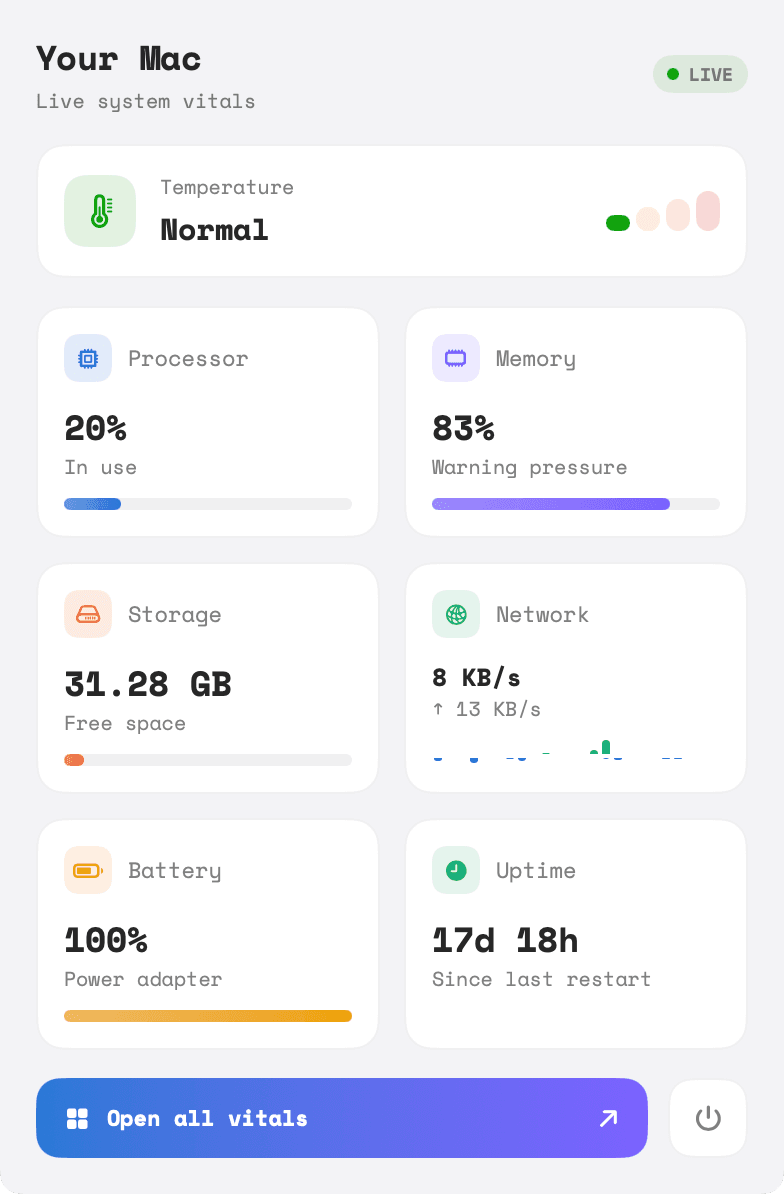
Battery health and cycle count change slowly, and macOS’s own screens above are the right place to check them. Tempo for Mac doesn’t show health or cycle count. What it does show is the day-to-day picture: battery percentage, whether it’s charging and the time remaining, in the menu bar and its dashboard, and it can alert you when the battery runs low.